
Download the Android app from the site and install it; iPhone users can add the PWA to the home screen.
Fast, secure sign in for Nigeria
Use Paripesa official website login or the mobile app to access your account fast. The platform accepts email or phone number and password, or your ID and password. You can log in any time after registration and verification to bet on sports, play casino, get bonuses, and manage transactions; data protection and optional two‑step verification keep your profile safe.
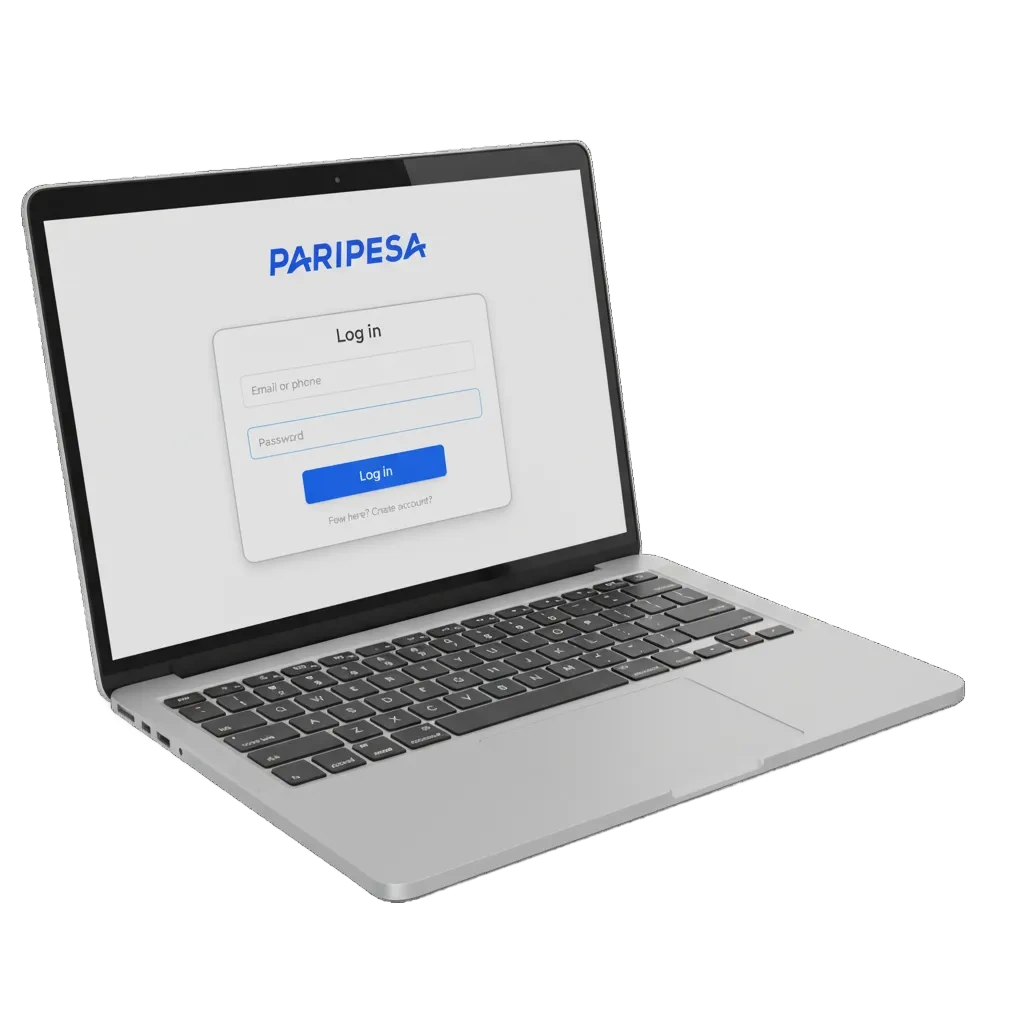
Guide to Paripesa login methods in Nigeria
There are easy ways to access your account on any device. Use Paripesa sign in that suits you.
Email + password, Phone number + password, User ID + password
Email and password login
This method works on the website and the app. You get password-only control and a simple process.
- Go to the login page on the official site or open the app.
- Enter your email address and password on the login screen.
- Tap Log in. Tick Remember me only on a personal device.
Log in on the app in a few steps
5 stepsThe mobile app saves your details and keeps you signed in on your personal device. Paripesa log in on the app follows the same process as the website, but navigation is optimised for touch.
Open the app and tap Log in.
Choose your method: email + password, phone + password, or ID + password.
Enter your details and tap Log in.
Enable two‑step verification in your profile for extra security if you use shared networks.
Fix common login problems fast
Some users face errors during sign in. Here is quick advice and solutions you can try before contacting support.
| Problem | Solution |
|---|---|
| Wrong password | Use Forgot Password to reset; check Caps Lock and keyboard layout; paste from a password manager. |
| No account found | Try phone, email, or user ID; confirm you are on the official site; register only if you have never created an account. |
| Account blocked after failed attempts | Wait 15 minutes and try again; reset the password; if still blocked, contact support and be ready to verify personal details. |
| Two‑step code not arriving | Check network or email spam; request a new code; sync device time; use backup codes if set. |
| Technical error or blank screen | Clear cache and cookies; update browser or app; turn off VPN; try another network or device. |
Reset a forgotten password
4 stepsYou can recover access in minutes. The process uses a secure link or code sent to your contact.
Click Forgot Password on the login page.
Choose recovery by email link or SMS code.
Enter your email or phone number and submit.
Follow the link or enter the code to set a new password, then log in.
FAQ
Can you stay signed in on a shared device?
For security, avoid it. Use Remember me only on personal devices; do not save personal information on shared systems.
How do you change your password after login?
Go to Profile settings, open Security, set a new password, then save.
Can you log in on more than one device?
Yes, but activity is monitored; you may be asked to verify if something looks unusual.
What if you registered by phone and now use email?
You can log in by phone number, email, or user ID linked to your account.
How do you enable two‑step verification?
Open Profile, go to Security, choose two‑step verification, and follow the on‑screen guide.
Updated: